


Shop more in Pc gear
Explore similar pc gear and discover more options in the same category.
Browse category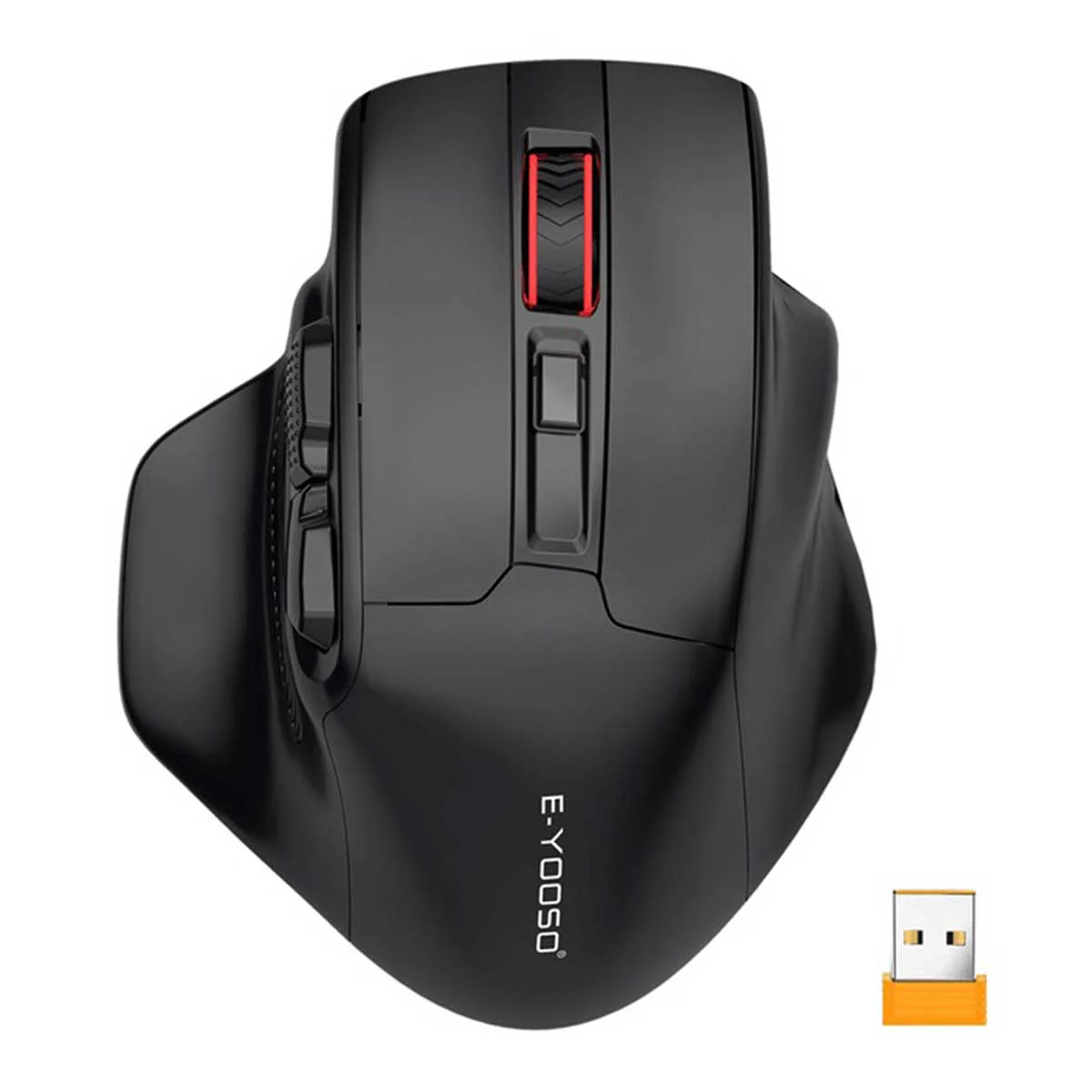
Currency: PKR
 We Deliver All Over Pakistan
We offer delivery services across Pakistan for your convenience. Here are the details of our shipping options:
 Leopards Courier
We also partner with Leopards Courier for deliveries throughout Pakistan. Here are the estimated delivery times for different scenarios:
Expedited delivery within 48 hours. Please note that the delivery times mentioned above are approximate and may vary depending on the location and other factors. We strive to ensure safe and secure shipping for all orders.
At WaddaGamer, we prioritize the safety and security of your packages to ensure a smooth delivery experience.
You can exchange any product purchased from WaddaGamer within 14 days of purchase under the following conditions:
To raise a dispute, please notify us within 3–4 days of delivery by contacting our support team via email at support@waddagamer.com or by calling 0300-0680143. Each dispute will be evaluated on a case-by-case basis, and we strive to find a fair resolution for both parties.
For damaged items, it is essential to provide an unboxing video as evidence. Please email the video to support@waddagamer.com within 14 days of purchase to initiate the replacement process.
Returns:
If a product received does not match the description on our website, you have 7 working days from the date of delivery to claim an exchange or cancel the order. To initiate a return, the product(s) must be undamaged, unopened, and returned with all packaging materials and documentation.
Refund Policy:
If an order is canceled for any reason, the refund will be processed within 3 to 4 days. In the event that you are not satisfied with your purchase or there are certain circumstances where a refund is applicable, WaddaGamer offers a refund policy. If the payment was made through a merchant, the refund will be processed through the same merchant channel.
Please note that if the payment was made via credit or debit card, any applicable refund may take 7 to 10 additional working days to reflect in your account, as per Pakistan's payment security standards.
To initiate a refund, please contact our support team at support@waddagamer.com or WhatsApp: 0300-0680143 within the specified time frame.
E-YOOSO X-31 (Black) Wireless Gaming Mouse
Dual Device Connection: Seamlessly switch between Bluetooth (3.0/5.0) and 2.4GHz wireless USB receiver modes, allowing connection to multiple devices like PCs, laptops, and tablets.
Ergonomic Design: Contoured shape with anti-slip and anti-sweat material, designed to fit large hands comfortably. Features finger rests and conveniently placed forward and backward buttons for enhanced web browsing efficiency.
Adjustable DPI & Polling Rate: Five adjustable DPI levels (800/1200/1600/2000/4800) for precise cursor control. Two polling rates (125Hz/250Hz) for responsive tracking.
Extended Battery Life: Up to 18 months of battery life with smart auto-sleep mode to conserve power when not in use.
Wide Compatibility: Compatible with Windows, Linux, Chromebook, Mac OS (side buttons not available), Android, and various devices with USB ports or Bluetooth capability.

Image: Illustration highlighting the ergonomic shape and finger rests of the E-YOOSO X-31 mouse, designed for comfortable use.

Image: Detailed view of the thumb rest and multi-finger rests, emphasizing the comfortable grip provided by the mouse's design.
1. Battery Installation
Open the battery compartment on the bottom of the mouse.
Insert one AA battery, ensuring correct polarity (+/-).
Close the battery compartment.
2. Connecting Your Mouse
The E-YOOSO X-31 mouse supports two connection modes: 2.4GHz Wireless (via USB receiver) and Bluetooth (BT3.0/BT5.0).

Image: Labeled diagram showing the various buttons and components of the E-YOOSO X-31 mouse, including the USB receiver storage.
2.1. 2.4GHz Wireless Connection
Locate the USB Nano Receiver stored in the battery compartment on the bottom of the mouse.
Plug the USB receiver into an available USB port on your computer or device.
Slide the mode switch on the bottom of the mouse to the '2.4G' position.
The mouse should automatically connect and be ready for use.
2.2. Bluetooth Connection (BT3.0 / BT5.0)
Slide the mode switch on the bottom of the mouse to the 'BT' position.
Press and hold the Bluetooth Pairing Button (located on the bottom of the mouse, near the mode switch) for 3-5 seconds until the indicator light starts blinking, indicating pairing mode.
On your device (PC, laptop, tablet, smartphone), go to Bluetooth settings and search for new devices.
Select 'E-YOOSO X-31' or a similar name from the list of available devices to pair.
Once paired, the indicator light on the mouse will stop blinking and remain solid for a few seconds, then turn off.

Image: Visual representation of the E-YOOSO X-31 mouse connecting to a phone via Bluetooth 5.0, a monitor via Bluetooth 3.0, and a laptop via 2.4G wireless, demonstrating its multi-device capability.

Image: Illustrates the two primary connection methods: plugging in the 2.4G USB receiver for wireless connection and pairing via Bluetooth for BT5.0/BT3.0 devices.
1. DPI Adjustment
The mouse features a dedicated DPI button to cycle through five sensitivity levels:
800 DPI
1200 DPI (Default)
1600 DPI
2000 DPI
4800 DPI
Press the DPI Button (located behind the scroll wheel) to switch between these levels. The cursor speed will change accordingly.

Image: Graphic illustrating the 5-level DPI adjustment (800-4800) and the location of the DPI button on the E-YOOSO X-31 mouse.

Image: Shows the DPI adjustment interface and a cutaway view of the mouse highlighting its precise optical sensor for accurate tracking.
2. Polling Rate Adjustment
To switch between polling rates (125Hz or 250Hz), press the Right Button and the Middle Button (Scroll Wheel) simultaneously for 3 seconds. This adjusts the mouse's reporting rate to the computer, affecting responsiveness.
3. Button Functions
Left Button: Standard click function.
Right Button: Context menu function.
Medium Scroller (Scroll Wheel): Scroll up/down, middle click.
Forward Button: Navigates forward in web browsers or file explorers.
Back Button: Navigates backward in web browsers or file explorers.
DPI Button: Cycles through DPI settings.
BT Pairing Button: Initiates Bluetooth pairing mode (on bottom).
Bluetooth Wireless Mode Switching Button: Switches between 2.4G and Bluetooth modes (on bottom).
1. Battery Life & Power Saving Mode
The E-YOOSO X-31 mouse is designed for extended battery life, up to 18 months. To maximize battery life, the mouse features a smart auto-sleep mode. If the mouse is not used for approximately 8 minutes, it will automatically enter a dormant state to save power. To reactivate the mouse, simply click any button.

Image: Shows the E-YOOSO X-31 mouse with an overlay indicating its auto-sleep feature and 18-month battery life, along with its dimensions.
2. Cleaning
The mouse is made with anti-slip and anti-sweat custom material. To clean, gently wipe the surface with a soft, dry cloth. For stubborn dirt, a slightly damp cloth can be used, ensuring no liquid enters the mouse. Avoid using harsh chemicals or abrasive materials.

Image: Highlights the skin-friendly touch of the mouse, emphasizing its anti-sweat and anti-fingerprint properties for easy maintenance.
Mouse Not Responding:
Check if the battery is inserted correctly and has sufficient charge. Replace if necessary.
Ensure the mode switch on the bottom of the mouse is set to the correct connection type (2.4G or BT).
For 2.4G wireless, ensure the USB receiver is securely plugged into a working USB port. Try a different USB port.
For Bluetooth, ensure Bluetooth is enabled on your device and the mouse is properly paired. Try re-pairing the mouse.
Side Buttons Not Working on Mac:
The forward and backward side buttons are not natively supported on Mac OS. This is a system limitation, not a mouse defect.
Lag or Intermittent Connection:
Ensure the mouse is within the effective operating range (up to 33ft/10m).
Reduce interference by moving the mouse away from other wireless devices (e.g., Wi-Fi routers, other Bluetooth devices).
Ensure the mouse surface is clean and suitable for optical tracking.
Brand | E-YOOSO |
Model Number | X-31 |
Color | Black (Bluetooth+Wireless) |
Connectivity Technology | Bluetooth (3.0/5.0), 2.4GHz USB Wireless |
Movement Detection Technology | Optical |
DPI Levels | 800 / 1200 / 1600 / 2000 / 4800 |
Polling Rate | 125Hz / 250Hz |
Battery Life | Up to 18 Months |
Power Saving Mode | Automatic Sleep after 8 minutes of inactivity |
Item Weight | 5.9 ounces |
Package Dimensions | 7.44 x 5.31 x 2.32 inches |
The E-YOOSO X-31 Large Bluetooth Wireless Mouse is widely compatible with various operating systems and devices:
Windows 11, 10, 8.1, 8, 7, XP, Vista
Linux
Chromebook
Mac OS (Note: Side buttons are not available on Mac systems)
Android
Surface Pro, Surface
Any device with USB Ports (for 2.4GHz wireless)
iPad, Smart Phone, PC, Laptop, MacBook (for Bluetooth connection)

Image: Icons representing various operating systems (Android, Vista, Mac, Windows, Linux, Chrome) indicating the wide compatibility of the E-YOOSO X-31 mouse.

Image: Depicts the E-YOOSO X-31 mouse used with a laptop, monitor, and tablet, illustrating its ability to work seamlessly across different devices.
Use these internal links to continue exploring similar categories and curated store sections.
Explore similar pc gear and discover more options in the same category.
Browse categorySee highlighted products that we surface across the store for quicker discovery.
View featuredKeep exploring more products related to E-YOOSO and adjacent gaming categories.
Explore more